Use a synced WordPress pattern when the same content should change everywhere it is used. Use an unsynced pattern when you want a reusable starting layout that each page can change independently. If you want a shared design with selected content that differs between pages, a synced pattern with supported overrides may fit better. Decide which of those outcomes you need before editing.
A business website often repeats contact panels, service cards and enquiry prompts. Repetition can make editing easier, but a change intended for one page can become confusing if the editor saves a shared pattern instead. The useful question is: “Should this change appear here, or in every linked use?”
Three choices, three editing outcomes
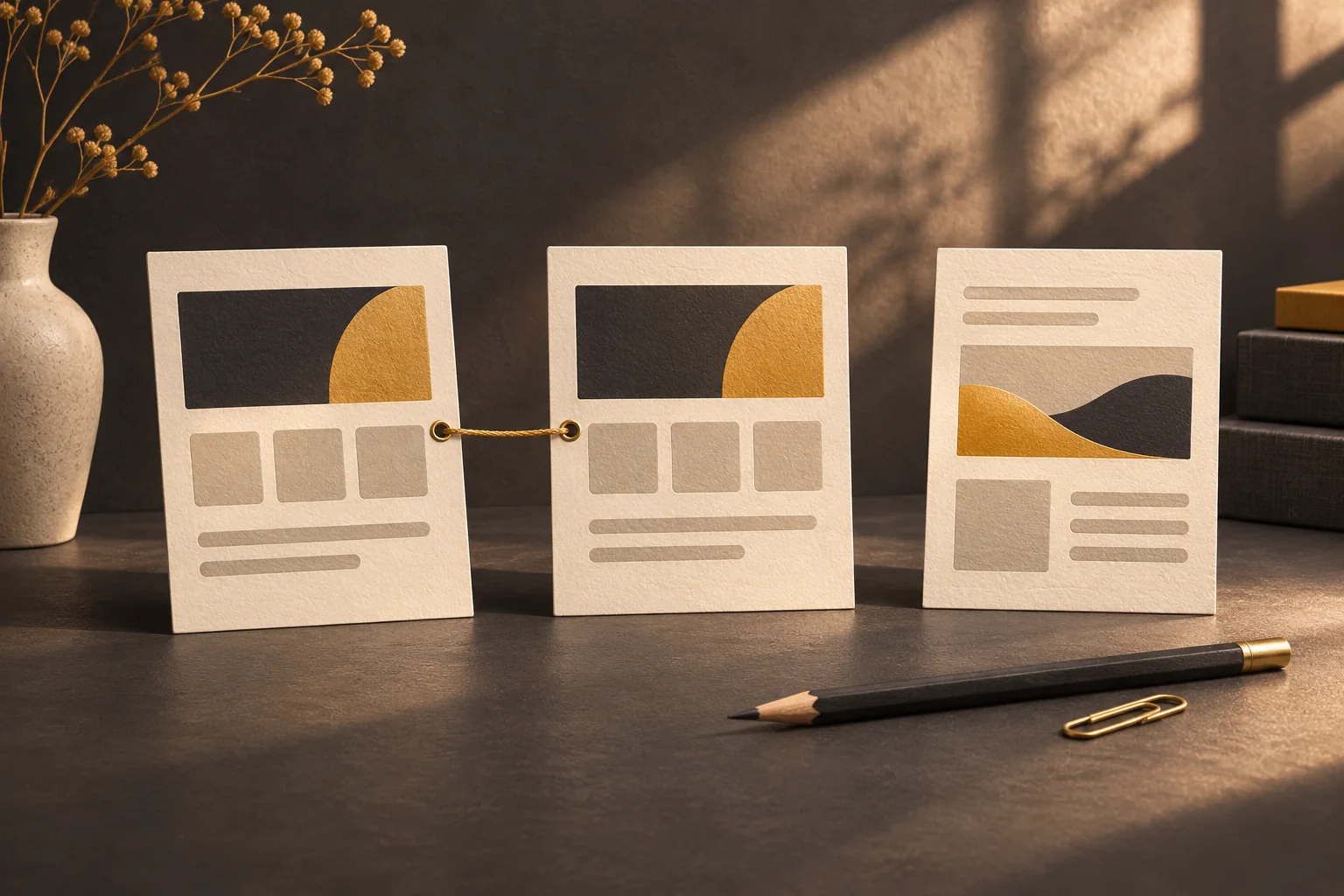
- Synced: one shared pattern. Saving a change to its source updates its linked uses.
- Unsynced: a starting arrangement of blocks. Each inserted copy can develop separately; later changes to the original pattern do not update those earlier copies.
- Synced with overrides: a shared structure with specifically enabled content fields that can differ in each instance. This requires an appropriate pattern and supported blocks; it is not an automatic property of every synced pattern.
WordPress previously called synced patterns “reusable blocks.” A familiar older label does not mean you need to rebuild them. The current WordPress block pattern documentation explains the shared saving behaviour.
Choose by the job the content must do
Imagine a general enquiry panel used on three service pages. If its contact instruction must stay identical, a synced pattern gives the team one place to maintain it. Now imagine three service introductions with different descriptions. An unsynced pattern gives those introductions a common starting layout without making their text shared.
For a set of team cards with a common design but different names and images, consider overrides. The official lesson on pattern overrides demonstrates this distinction. A local content edit and a central design edit have different scopes. Confirm which fields have actually been enabled for overrides before relying on them.
Check the scope before you save
- Identify the pattern. Select it and read its name and available controls. Do not infer its sync status from the appearance of the page.
- State the intended result. Write one short instruction for the editor: all linked uses should change, or only this occurrence should change.
- Review the saving summary. If WordPress lists a synced pattern as a separate item to save, treat that as a shared change. Stop if that is outside your intended scope.
- Preview representative pages. Check this page and another known use. Verify the actual text, image and button destination, including on a narrow screen.
For a one-off variation, WordPress offers a detach action that converts that occurrence to ordinary blocks. Confirm that losing future shared updates is acceptable before doing it. Keep a record of exceptions so a later editor knows why that panel behaves differently.
A locked layout does not prove that content is synced
Content-only editing can restrict layout controls while allowing text or images to change. Those restrictions and synchronization answer different questions. Current WordPress interfaces can show content-only editing for ordinary patterns too. A restricted toolbar is therefore not reliable evidence of shared content.
The WordPress developer explanation of overrides describes how local content can remain connected to a shared design. Control names and supported fields depend on the WordPress version and the particular blocks involved.
Common questions
Will changing a theme pattern update pages where I already inserted it?
For an ordinary unsynced pattern, no. The inserted blocks are independent. The Theme Handbook distinguishes these copies from synced patterns. Keep that distinction in your editing instructions.
Why can I not find Appearance → Editor → Patterns?
The Site Editor Patterns documentation describes that route for block themes. A site using a different theme or page builder can expose different controls. Check the site’s actual editor rather than installing or switching a theme just to follow a screenshot.
Do patterns automatically make a website faster or improve rankings?
Do not assume either outcome. Choose the pattern type for a clear editing workflow, then assess the rendered page’s content, images and behaviour separately. A shared layout is not evidence of a measured performance or SEO improvement.
Make the next edit predictable
Document the pattern name, its purpose, who maintains it and which parts may vary. That short handoff can be more useful than a long list of formatting rules. If your team needs help defining ongoing content edits, discuss the scope of WordPress care and support with The Web Designer.
Documentation reviewed 26 November 2026. Examples are illustrative editing scenarios, not reported client tests.