

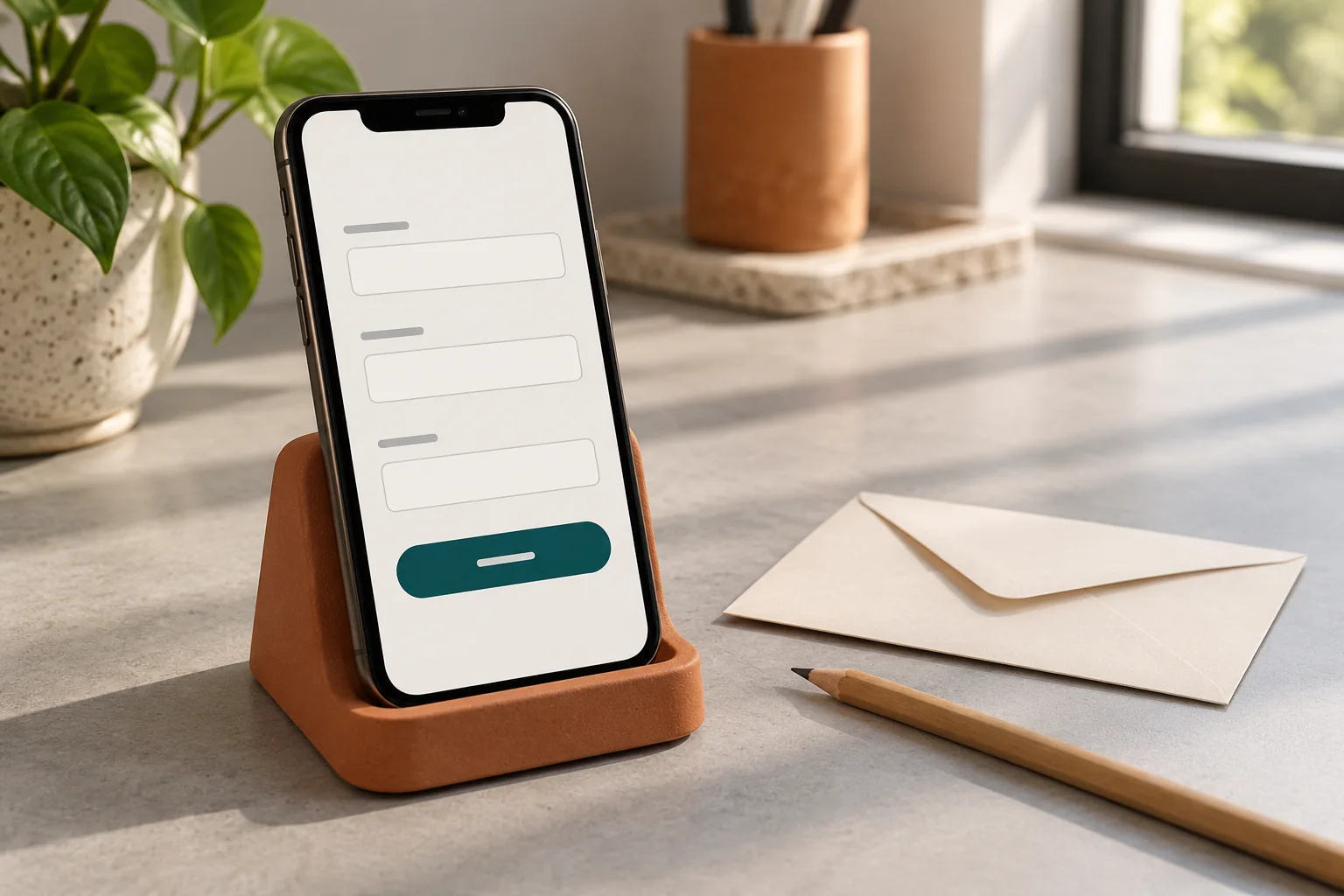
A business contact form should collect enough information to understand and answer an enquiry, explain what each field needs and clearly confirm what happened after submission. Make a field compulsory only when your team needs it to handle that first contact.
If enquiries arrive without enough context, it is tempting to add more questions. But a long questionnaire can ask visitors to make decisions they are not ready to make. Begin with the conversation your team needs to have, then design the form around it.
Decide what you need for the first reply
For a general service enquiry, a reply address and a description of the request may be sufficient. A name can help personalise a reply; a website address can help explain an existing-site problem. Whether those fields need to be required depends on your actual process.
For example, an illustrative website enquiry form could ask for:
- Email address: where the visitor wants your reply.
- What do you need help with? a short description of the project or problem.
- Your name: optional if your process does not require it.
- Existing website: optional, with a note that it is fine not to have one.
A phone number, budget range or preferred start date may be useful for a more detailed project brief. Do not automatically make them compulsory on every contact form. Keep credentials, payment details and sensitive documents out of a general enquiry field.
Write labels that remain useful while someone types
Use a visible label that describes the field’s purpose. A placeholder can show an example, but it disappears during entry and should not carry the only instruction. If a field needs a particular format, explain it before an error occurs.
W3C’s form labelling tutorial explains how labels are associated with controls. The implementation matters: text positioned beside a box is not necessarily a programmatically connected label. Appropriate input types can also make mobile entry easier, such as an email keyboard for an email address.
Mark required and optional fields consistently. Prefer a direct label such as “Existing website (optional)” to an unexplained symbol. Keep a message prompt specific enough to help: “Tell us what the website should do, or what is currently going wrong.”
Make errors explain the next action
“Invalid input” tells a visitor little. “Enter an email address, such as name@example.com” explains what to correct without blaming them. An empty required message field needs a different explanation from an incorrectly formatted address.
W3C’s user notification guidance recommends clear feedback about both errors and successful submissions. Refer to the field by its label, put useful feedback close to the problem and make the overall outcome apparent. Do not rely on a red border alone.
Include an error state in the design review. A form can look orderly when empty yet become confusing once several messages appear. Check whether useful information remains visible and whether a person using a keyboard can reach the field that needs attention.
Say what happened after submission
A success message should reflect the system’s actual outcome and explain the next step. Do not promise an instant response or a specific reply time unless the business can support it. A clearly labelled button such as “Send enquiry” also sets a more useful expectation than a vague “Go”.
Form acceptance and delivery to the intended inbox are separate checks. A visible success message is not evidence that a person has received or read the enquiry. Plan a controlled test with the website owner and verify arrival at the agreed destination, without exposing real customer data.
For sites using Contact Form 7, its official mail setup documentation distinguishes recipient, sender, subject and message body settings. A form’s visual layout does not establish that these settings are correct. Ask the maintainer to check the relevant configuration rather than installing additional tools without a diagnosis.
Review the whole experience on a phone
- Read the introduction and identify which fields are required.
- Tap each label and field; check text size, available space and the on-screen keyboard.
- Try a missing required field and a formatting error in a controlled test.
- Correct the problem and check the confirmation.
- Verify the test enquiry at its intended destination and remove test data through the agreed process.
These are checks to perform on your own implementation, not a claim that a particular plugin or website has passed them. Repeat them after meaningful form changes.
Make the next conversation easier
Give your designer a field list, a required-or-optional decision for each item, draft error messages and the real enquiry-handling process. If the form is part of a wider website improvement, our website design services can help connect the page content and enquiry route. You can also describe the project without preparing a complete technical specification first.