
A service-business website menu should help a visitor find the right service, understand who provides it and reach a useful next step. Start with those tasks, then choose clear labels and a small set of meaningful groups. A menu does not need to list every page on the website.
This matters when your business has grown but the navigation still reflects how the company was organised years ago. A visitor looking for website maintenance should not have to guess whether it sits under “Solutions”, “Digital” or “More”.
Start with questions your customers need answered
Before opening a menu editor, write down the journeys the website must support. For example: “Can this business build the kind of website I need?”, “Can I see relevant work?” and “How do I discuss an existing site?” These are planning examples, not results from a client study.
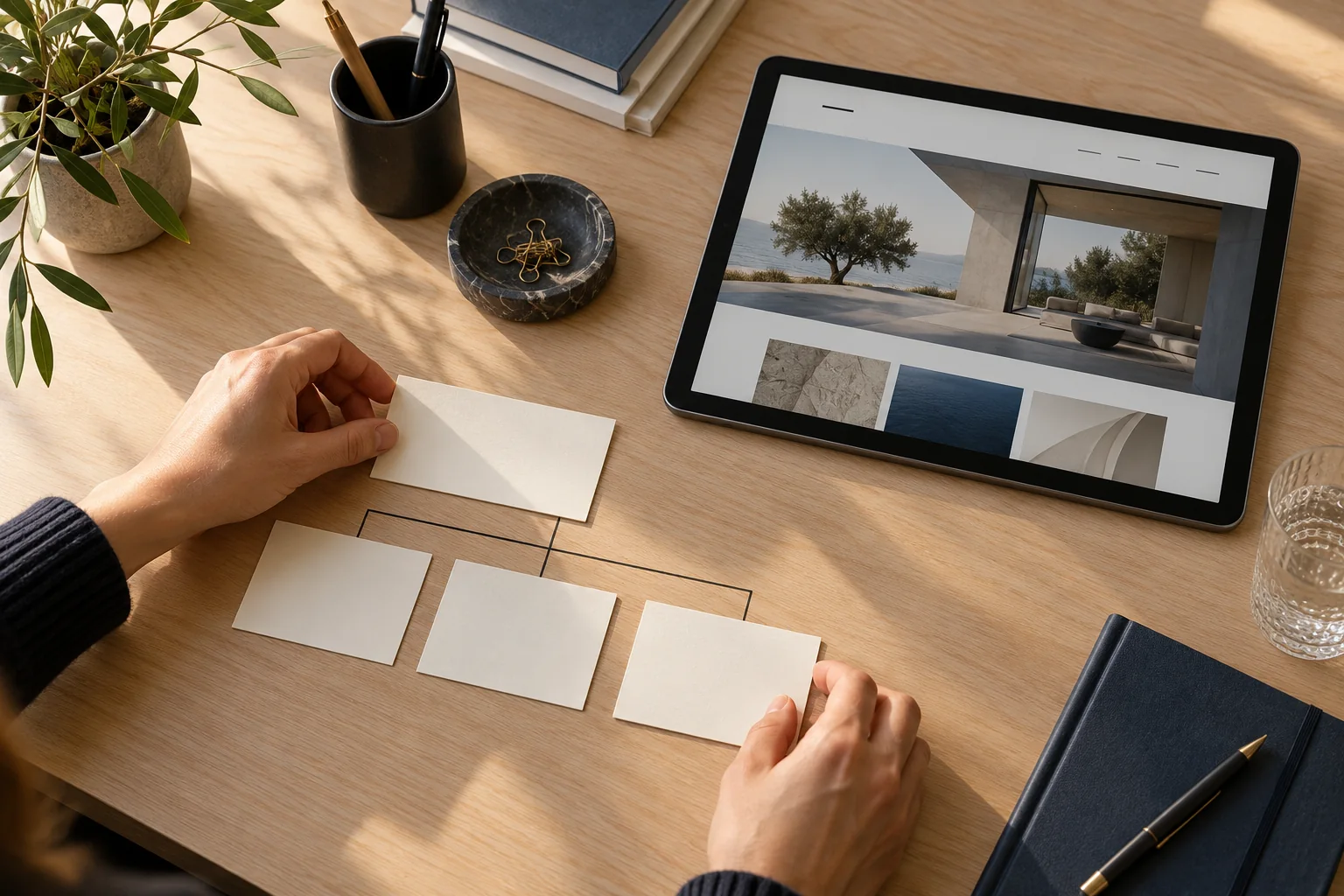
Make a simple inventory of your current pages. For each one, record its address, purpose and the visitor question it answers. Separate pages that help a buying decision from supporting articles, legal information and account functions. This gives you a reason for each navigation link instead of adding links because they exist.
Group services without hiding what you actually offer
A possible starting menu for a small service business is Home, Services, Work, About and Contact. It is a sketch to adapt, not a universal template. “Work” only belongs there if you have approved examples to show; “Services” needs a useful destination rather than an empty heading.
- Use service names people can recognise, such as Website Design or Website Maintenance.
- Put related services together when the relationship is clear to a new visitor.
- Keep a direct route to the most important enquiry action.
- Place supporting resources in a relevant section or footer rather than forcing everything into the header.
If a service needs a long explanation, let its page do that work. A concise menu label and a more specific page heading can serve different purposes. Avoid creating several near-identical service pages simply to fill a submenu.
Choose labels by destination, not by decoration
Read each label without looking at the page design. Could a prospective customer predict what will open? A label such as “Our world” may suit a campaign, but it needs more explanation than “About”. Likewise, “Start a project” should lead to a project enquiry route, not a general article archive.
W3C’s menu structure guidance recommends meaningful navigation structure and consistency across screen sizes. Ask your implementer to use appropriate navigation landmarks and list structure, and to identify the current page in a way assistive technology can understand. Visual styling alone does not communicate all of that information.
Make mobile and dropdown behaviour part of the brief
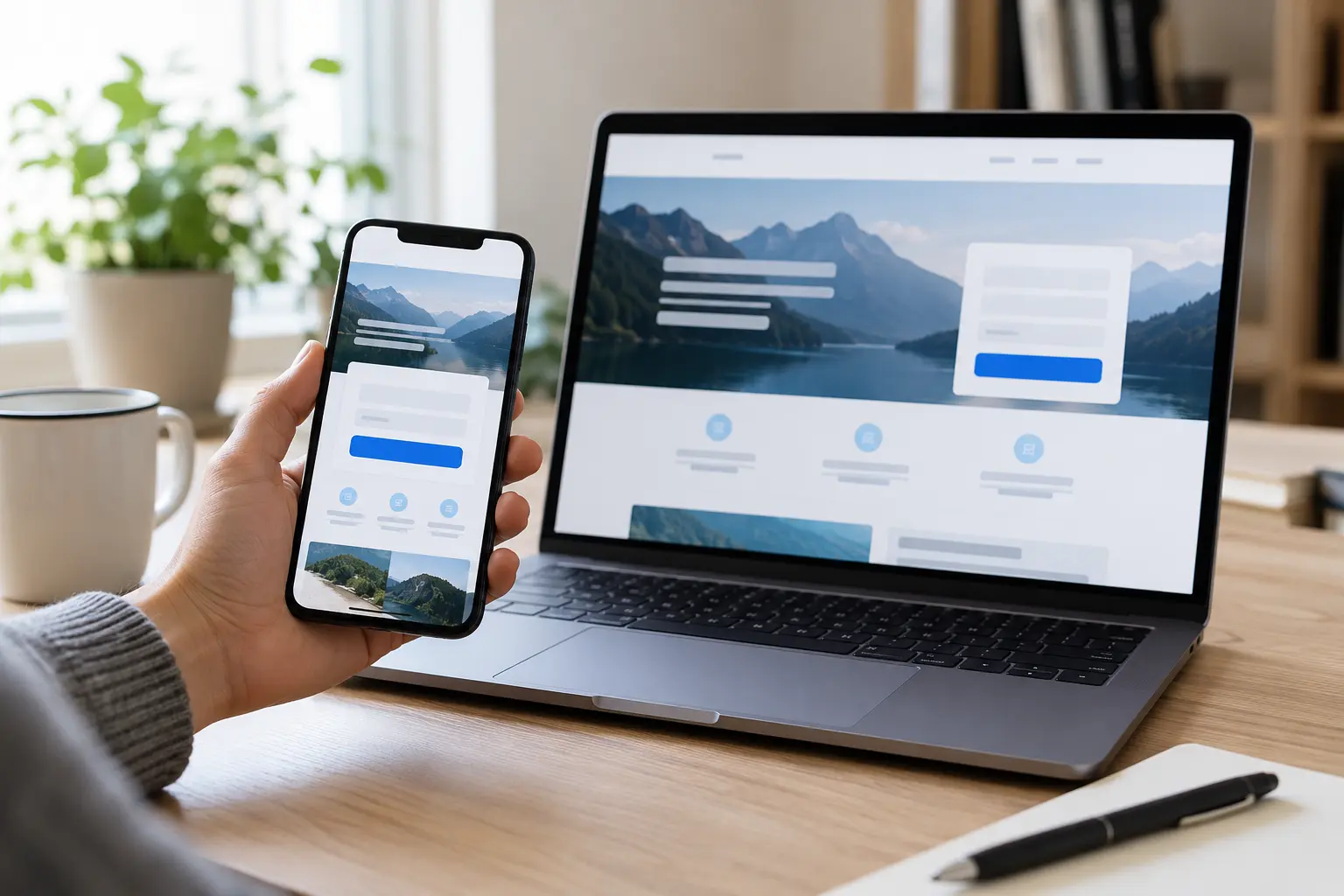
On a phone, the menu can collapse into a button while retaining understandable wording and destinations. Check the expanded menu, not just the closed icon. Long service names, nested lists and an enquiry button can behave differently once the available width becomes narrow.
A dropdown must not depend only on hovering a mouse. Where a parent item opens a real page, distinguish that link from the control that expands its children. W3C’s fly-out menu tutorial also recommends an alternative route to submenu pages, such as links on the parent page. That is useful for visitors who find fly-outs difficult to operate.
Check these journeys before approving the menu
- From the homepage, find one priority service without being told its location.
- Open the menu on a narrow phone display and follow the same route.
- Use a keyboard to reach links and submenu controls; check that focus remains visible and that you can leave the menu.
- Check every destination, including the logo link and the enquiry action.
- From a service page, look for a relevant next step in the content itself.
Record where someone hesitates and the wording they expected. Change one unclear grouping or label and repeat the task. These observations are more useful than approving a menu solely because its animation looks polished.
Where do you edit navigation in WordPress?
The editing route depends on the active theme and builder. The WordPress Navigation block can manage links and submenus on sites that use it; other sites use classic menus or a builder’s header. Confirm which component controls the live header before making changes, and keep a record of the previous structure.
Plan the route before redesigning the header
Prepare a page inventory, a proposed menu and three visitor tasks. If your current structure makes it hard to explain your services, explore our website design services or discuss the website you need. The useful starting point is what customers must find, followed by a design that helps them find it.