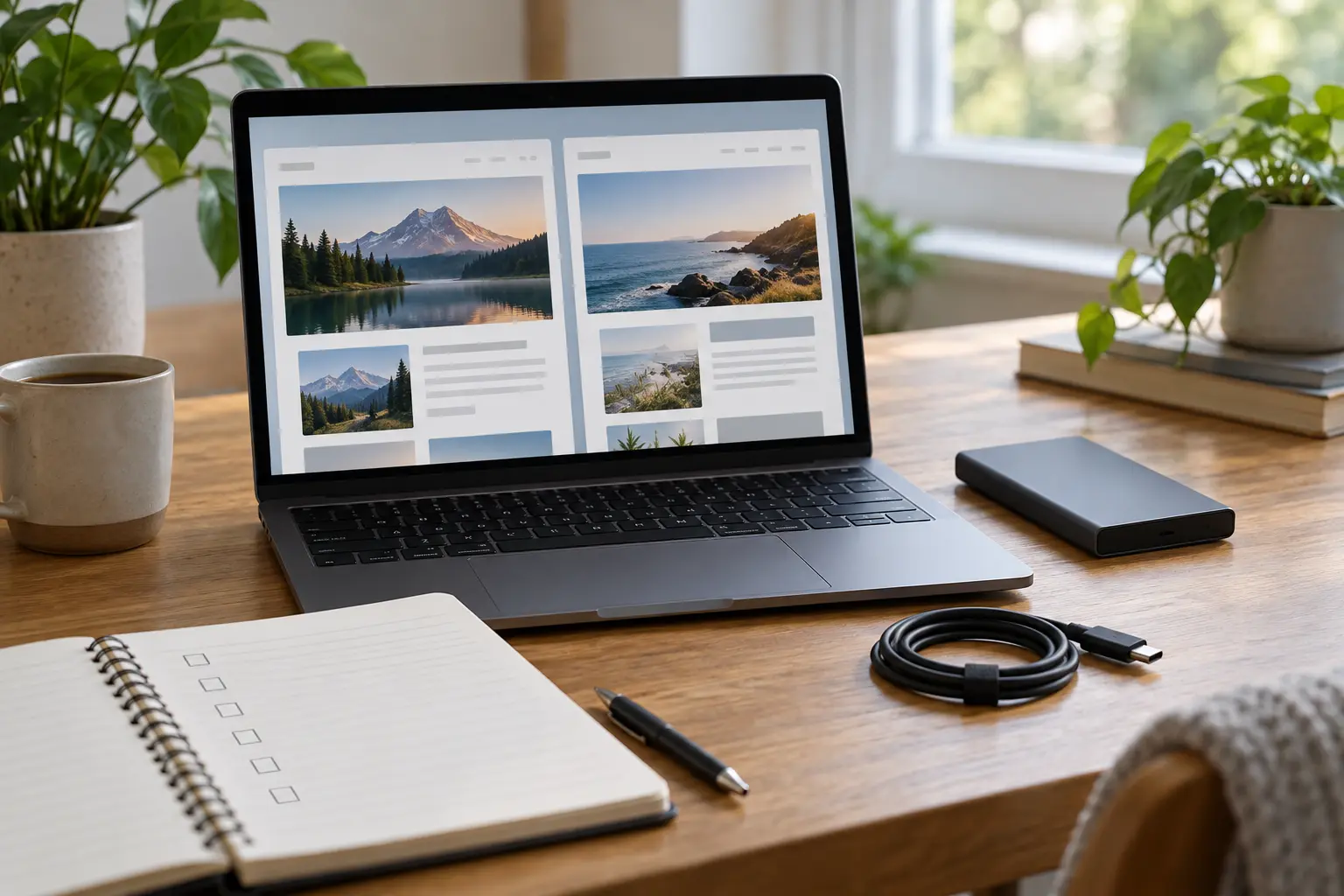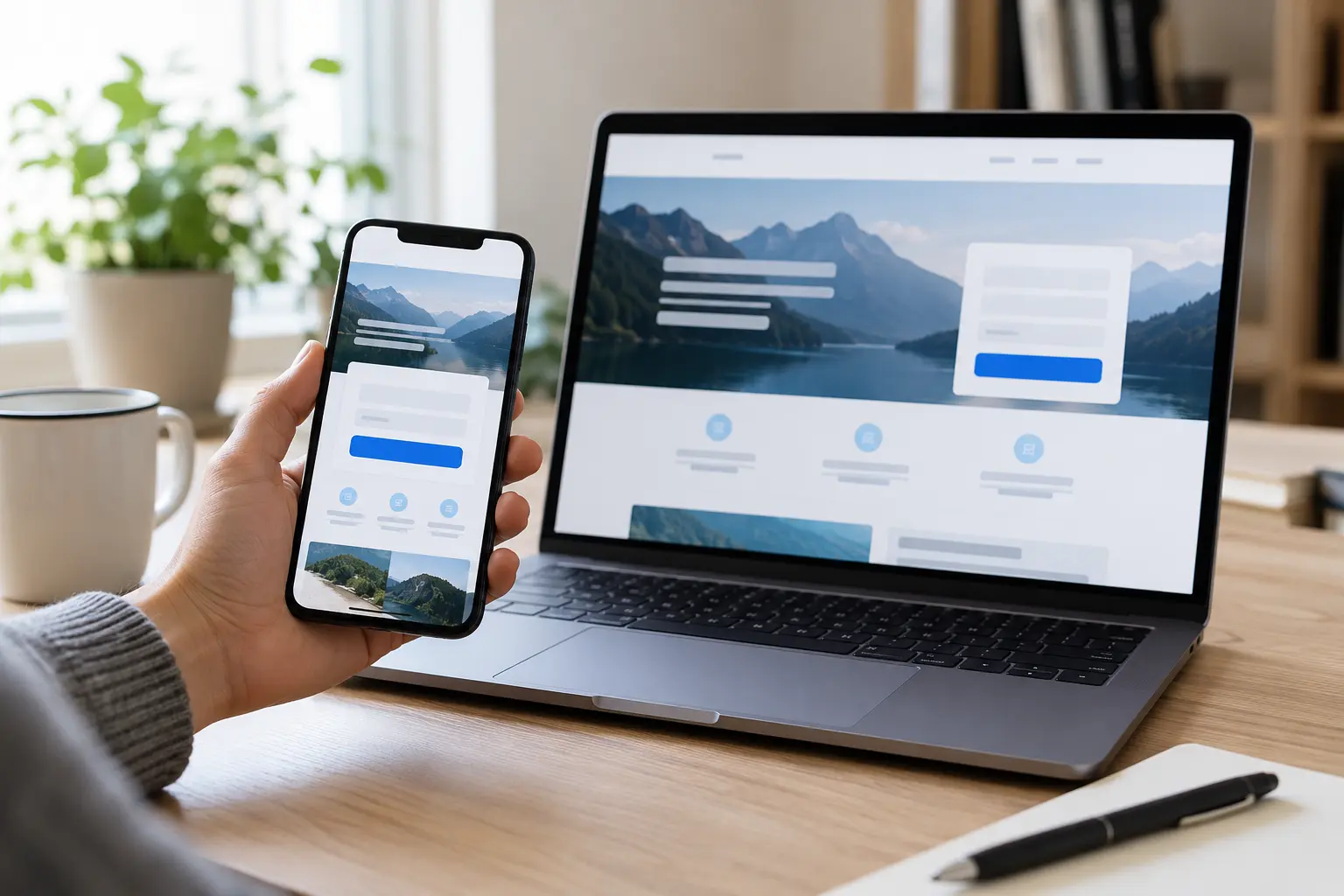

Prepare a website image for the place it will appear: choose a useful crop, export suitable pixel dimensions, compare compression quality and write alternative text that matches the image’s purpose. Then check the actual page on desktop and mobile. There is no single file size or width that is right for every image.
A photograph can look excellent in an archive and still be awkward on a website. The subject may disappear in a narrow crop, text may become unreadable, or a small displayed image may still download an unnecessarily large file. Treat preparation as part of the page design rather than a final upload task.
Start with purpose, permission and an original file
Decide whether the image explains something, identifies a person or product, or simply provides decoration. A service illustration should support the nearby content instead of implying a real client project or a measured result that did not happen.
Keep an untouched original and a record of permission or the applicable licence. Do not assume an image is available to reuse because it appears in a search result. For client material, confirm that the particular image and any identifying details are approved for public use.
Choose the crop before setting the export width
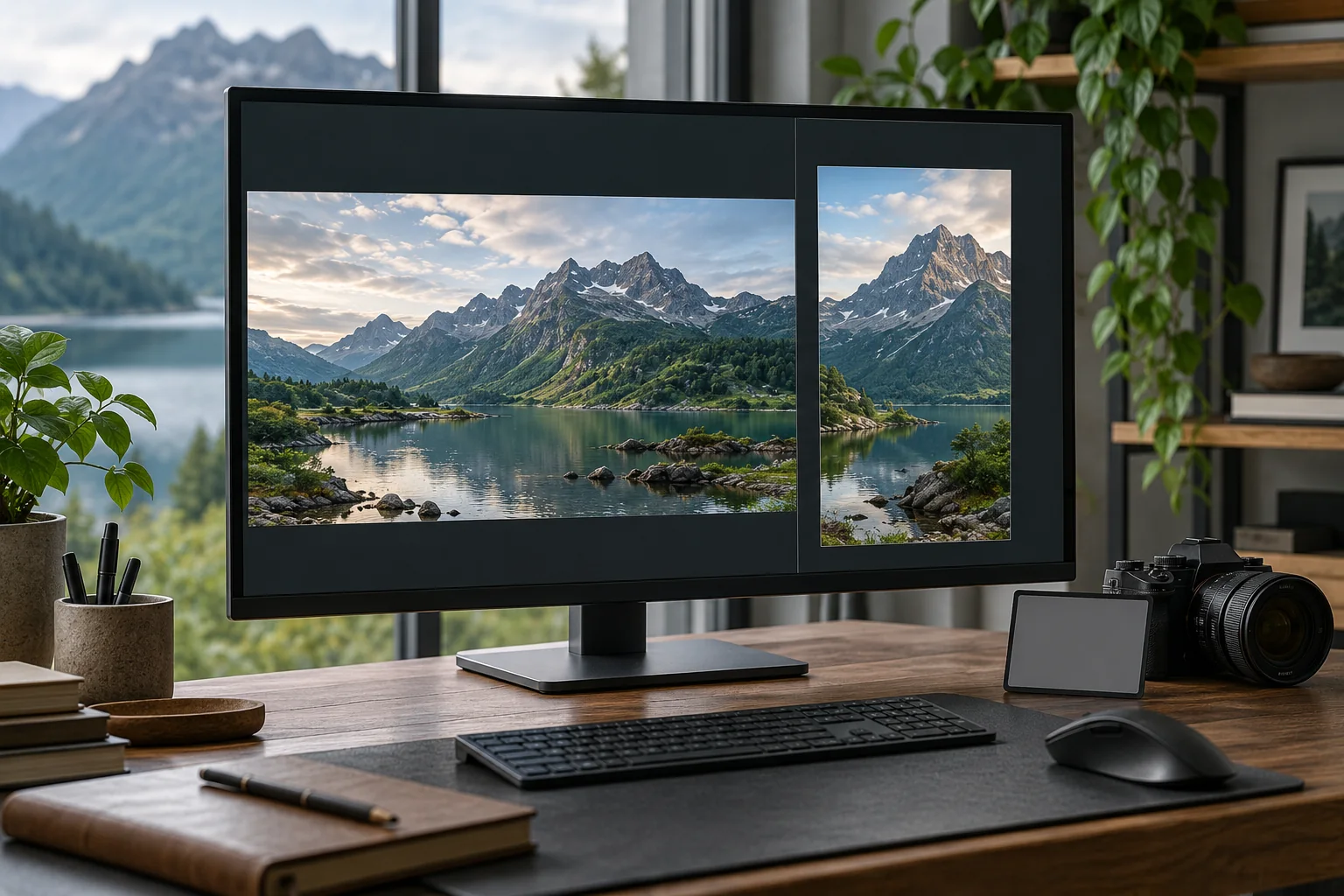
Ask where the image will appear: a wide hero, a square card or an image within an article. These placements can require different compositions. Leave room around the important subject when a theme crops thumbnails automatically.
For an illustrative example, a wide photograph of a workspace might suit a desktop header but lose the subject when cropped into a tall mobile panel. A separately prepared crop can be more useful than repeatedly shrinking the same wide view. Avoid putting essential instructions or contact details inside the artwork; keep them as real page text.
Separate pixel dimensions from file weight
Pixel dimensions describe the image’s width and height. File weight describes the amount of data transferred. Both matter, but they answer different questions. Making a large file look small through page styling does not by itself create a smaller downloadable file.
Use the intended display size as a starting point and allow for higher-density screens where appropriate. Do not enlarge a small source image merely to reach an arbitrary width. Export a candidate, examine it at the size people will actually see and compare its file weight with the original.
Compare formats using the real image
JPEG, WebP and AVIF can be useful choices for photographs; PNG can be appropriate when lossless reproduction is needed. The best export depends on the content, quality settings, transparency and the site’s delivery support. The MDN image format guide explains these format trade-offs.
Compare at least the original and your proposed web export. Look closely at faces, lettering, fine edges and areas of smooth colour. If compression creates visible damage, revise the settings instead of approving the file solely because it is smaller. An optimisation plugin is not a substitute for this visual check.
Check which version the page actually serves
Responsive image markup can offer several sizes so the browser can select a suitable source. In web.dev’s responsive image guidance, srcset describes available image candidates and sizes describes their expected display size. The picture element can support more explicit choices, such as different crops.
Your WordPress theme or builder may handle some of this automatically. Ask the implementer to inspect the rendered image and the file actually requested at representative screen sizes. An uploaded set of thumbnails does not prove the right one is being used in a particular layout.
Write alt text for the image’s job
Alternative text should convey relevant meaning when someone cannot see the image. For example, “Wide and portrait crops of a landscape shown on a monitor” describes an illustration of image preparation. A list of target keywords does not.
Google’s image guidance recommends descriptive filenames, helpful alternative text and relevant surrounding content. It also explains the importance of standard HTML image elements for discovery. These practices help understanding; they do not guarantee rankings or indexing.
An image that is purely decorative may need an empty alternative rather than a repetitive description. A linked image may need text that explains its destination or action. W3C’s alt text decision tree is a useful way to distinguish those cases.
A practical pre-launch image check
- The subject and crop work on both desktop and a narrow phone screen.
- The export is visibly acceptable and its dimensions suit the placement.
- The image loads from the intended file, with appropriate responsive versions where used.
- Alternative text, captions and filenames describe the actual content without repetition.
- Permission is recorded, and essential information remains available as page text.
Prepare this information alongside the page brief. If imagery and layout are making your business website difficult to use, explore our website design services or discuss the improvements you need.